

How to Block My Child From Calling a Number (Android) and Avoid Spam?

Melissa E. Henry

After Unknown Number: The High School Catfish dropped on Netflix, a lot of parents thought: What if it were my child? No way.

Yeah, no one wants to imagine their kid getting random calls or creepy texts from strangers. It’s not great for adults (and really annoying, honestly), but for kids it’s a big risk. 

Luckily, Android phones (and a few smart apps) let you fulfill your dream: control and block my child from calling a number. You can be sure that all methods (from Eyezy to the built-in option) are available for everyone. 

And we can show you that your anxiety is totally understandable and you’re not over-worrying. 

Table Of Contents

Why (and Which) Calls Could Be Dangerous

Just a voice on the line, what can it do? For kids, who are often trusting and less experienced with scams, a single call from the wrong person can turn into real harm. That’s why it’s so important to know who can reach kids and limit who my child can text on Android:  

  1. Spam. In a global cross-market study by Hiya, based on a dataset of 243 billion calls in 2022, 10% of all calls were identified as spam or fraudulent calls. 
  2. Financial scam. Calls that ask for money, gift cards, or verification codes. 
  3. Grooming and predatory contact. 
  4. Location disclosure. “Where’s your school?” or “Are your parents home?” — a child’s routine and whereabouts are not a secret anymore.
  5. Repeated prank calls, threats, or bullying-like behaviour. 

It’s worth checking what your child’s Android phone can already do with base options. Most Android devices include parental control or contact restriction features. For example, you can use Google Family Link to restrict contacts.  

Here’s how to set it up:

  1. Open the Settings app on your child’s phone.
  2. Go to Digital Wellbeing & Parental Controls.
  3. Tap Set up Parental Controls and choose Child or Teen.
  4. Follow the on-screen steps to connect their device to your Google Family Link account.
  5. Once connected, open the Family Link app on your phone.
  6. Tap your child’s profile → Controls → Content restrictions → Communication.

From there, you can use the Family Link block contacts feature and choose who your child can call or message: only approved contacts or anyone. 

If your phone doesn’t show these exact steps, it may depend on the manufacturer (Samsung, Xiaomi, etc.), but most devices running Android 10 or newer offer a similar setup.

Some restrictions you should know: 

  • Family Link might not be offered in all countries or regions. 
  • You can’t use Family Link to supervise iPhones, iPads, or computers other than Chromebooks.
  • Family Link allows you to create a Google Account for your child under 13 (or the age that applies in your country). 
  • You need to check the device compatibility. 

Use an Eyezy Parental Control App

If you want more control, a parental control app is the way to go.

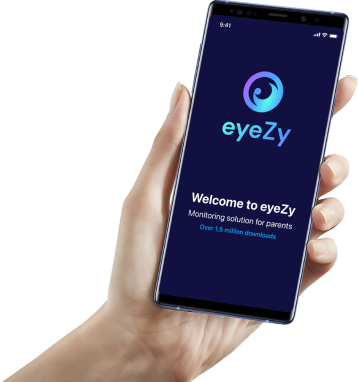
Tools like Eyezy make it easy to manage your child’s device use without constantly checking their phone. 

Here’s how it works:

  1. Install Eyezy on your child’s Android device and connect it to your parent Control Panel.
  2. Open the Calls section to view all incoming and outgoing calls, including contact names and timestamps.

Unlike the built-in Android settings, Eyezy goes beyond simple call monitoring. It gives you real control and real insights. 

You can instantly spot unknown or suspicious numbers and see how often your child communicates with certain contacts. So, no need to touch their phone.

eyezy-banner-image
Tired of constant ‘Where are you?’ texts?
Check their location with Eyezy.

Other Eyezy Features That Help Keep Kids Safe

Calls are just one part of the puzzle. Kids these days are always on different apps like WhatsApp, Snapchat, Telegram, and Instagram. 

So even if you block my child from calling a number (iPhone or Android), strangers, or spammers can still reach them through messages, DMs, or voice chats. That’s why having extra control tools is a good idea.

  1. Message Monitoring: See texts, deleted messages, and chats from popular apps like WhatsApp, Snapchat, Telegram, and more. Perfect for spotting red flags or hidden conversations. 
  2. GPS Location Tracking: Know where your child is and view their location history. You can even set safe zones to get alerts when they leave certain areas.
  3. Web Filtering: Stop access to harmful or age-inappropriate websites, adult content, or suspicious links before they cause trouble.
  4. Screen Recorder: Capture live screen activity so you can understand what your child is doing online, not just what they tell you.
  5. Surroundings & Camera Access: Listen to ambient sounds or view through the phone’s camera if something feels off, ensuring your child’s safety in real situations.
  6. Activity Reports: Get daily summaries of their phone use, top contacts, and most used apps, all in one simple dashboard.

Eyezy gives parents peace of mind without constant hovering, one smart feature at a time. It’s about creating a space where your child can explore and connect without danger sneaking in from any angle. 

Final Thoughts

Keep my child from unblocking contacts or numbers I have blocked easily, with these tools.   

Strangers and scammers are finding new ways to reach children every day, from phone calls to social apps. That’s why setting up call restrictions on Android and adding tools like Eyezy can make all the difference.

With a few smart steps, you can make sure your child only communicates with trusted people, stays protected from spam or fraud, and learns healthy phone habits along the way.

Because at the end of the day, it’s about their freedom and staying safe.

eyezy-banner-image
See everything everywhere with Eyezy.
Parental app that keeps up with tomorrow's technology
Melissa has been working in education for more than 10 years. As a vocational education teacher in the finance and marketing career clusters, she is experienced in explaining complicated things in simple words. On top of equipping her students with the needed skills, she also shares her knowledge online, delivering marketing-related educational articles and how-to guides for various digital tools.

Leave a reply:

Your email address will not be published. Required fields are marked *


eyezy-banner-image
See everything everywhere with Eyezy.
Parental app that keeps up with tomorrow's technology

Sign up to our newsletters
Back to Top